Usertick
Operations teams

Know how every location is doing, and fix problems the same day

Put a QR code in every store, branch and dining room, and ask customers after each visit or job. Usertick reads every answer, sends urgent problems to the team at that location and keeps each place's results apart, so you can compare them.

One view of every place you run

Survey software for operations teams has to work where the service happens: at the counter, at the table, in the waiting room and at the customer's door after a job. A short survey behind a QR code or a link reaches customers there, minutes after the visit, while the details are still clear.

With Usertick, each location gets its own survey, made by duplicating the first one, with its own link, QR code and results. Answers from every place arrive in one inbox, and a dashboard compares the same score across your locations, side by side or week by week.

The AI reads every written answer for its theme and urgency, so a broken card machine stands out from a comment about the music. On every plan, a workflow posts urgent problems to that location's channel, and from Pro, each manager gets a weekly report on their own place.


Plans
QR code and link surveys, Results and AI reading on every plan, the free plan included
Locations
A survey per location: 3 on Free, 10 on Starter, unlimited on Pro and Business
Channels
QR codes at the place, links in your texts and receipts, email after a job
Tools
Slack, Teams and workflows on every plan, scheduled reports from Pro

Ask where the service happens

A code or a link at the moment a visit or a job ends.

At the counter or the table

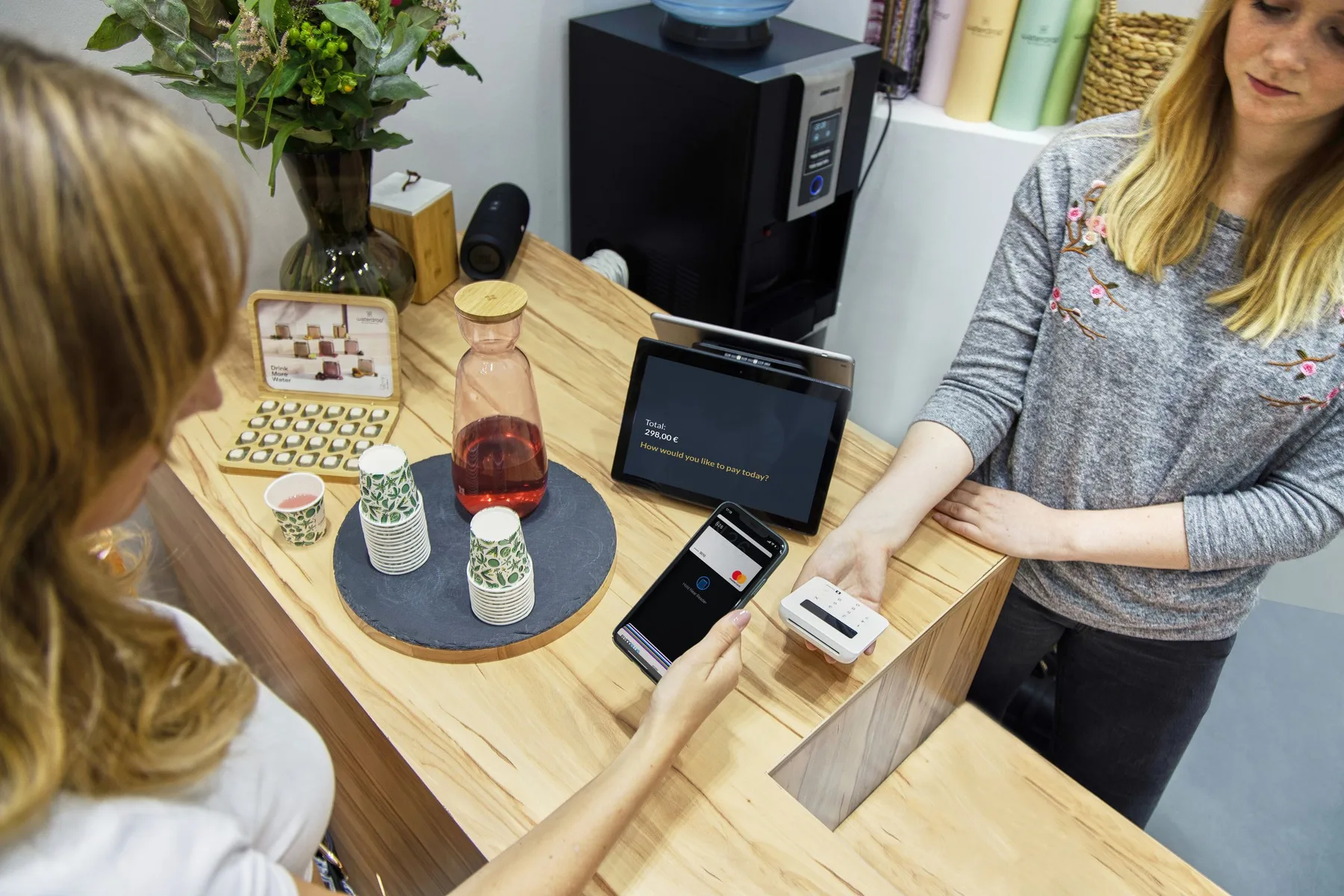
Print the location's QR code on a table card, a receipt or a sign by the register. The code opens the survey page in any phone's browser and points to the live survey, so a changed question never means a new print.

At pickup and checkout

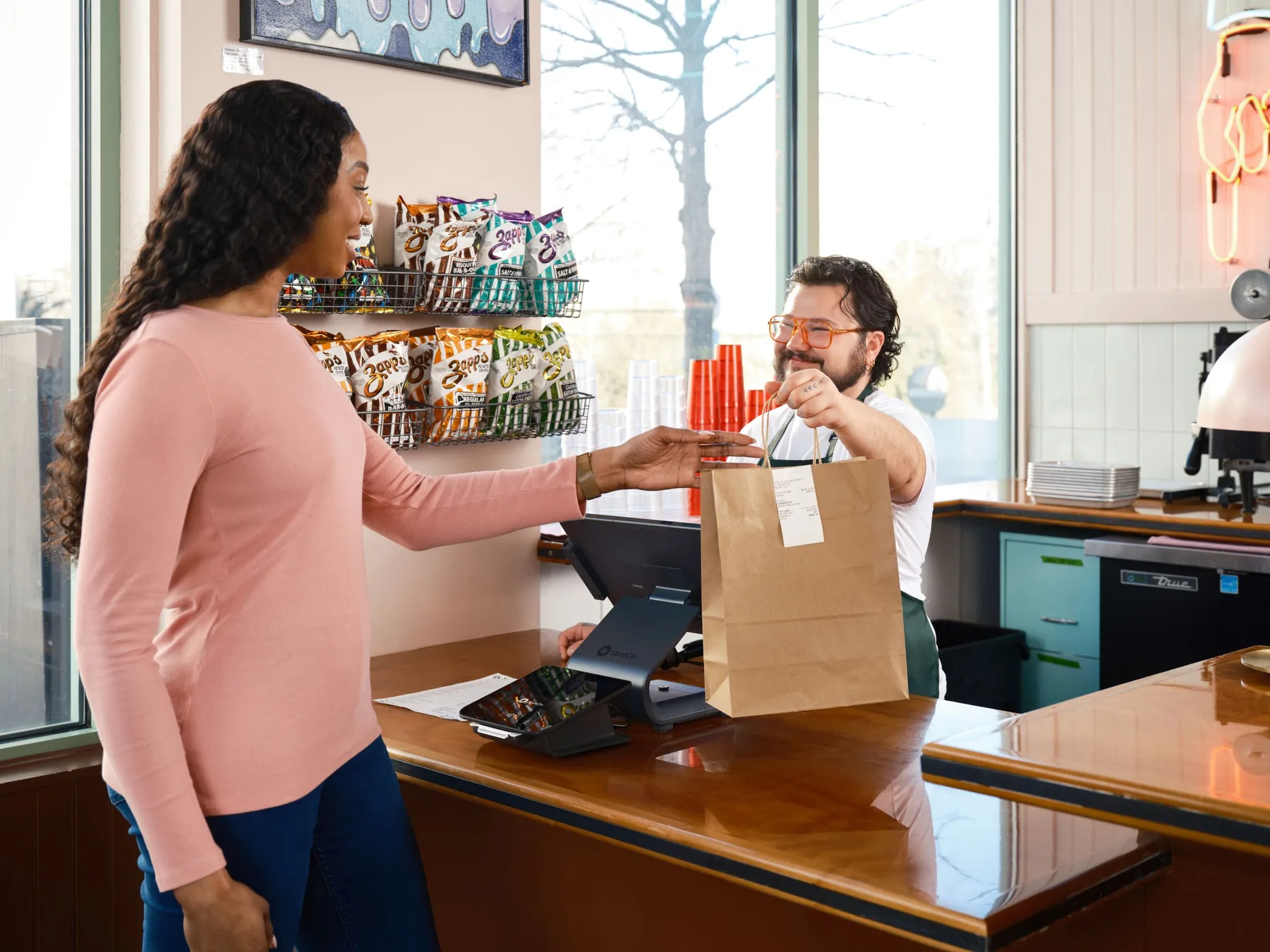
Ask how easy pickup was and how long the wait at the counter took, with the code on the bag or the order slip.

After an appointment

For clinics, branches and salons, ask about the wait and the front desk the same day, with a code at reception or the link in your reminder text.

After a job at the customer's home

Email the customer when a cleaning, repair or moving job is done, and the first question is answered inside the message.

When an order arrives

Add the survey link to the delivery message you already send, and ask how the delivery went and whether the order arrived on time.

Keep every location's answers apart

Two ways to see each place on its own and next to the others.

A survey for each location

Duplicate the survey for each store or branch, and each copy gets its own link, QR code, Results and AI reading. A dashboard card then shows the same score from every location as bars or over time. Up to 10 surveys on Starter, unlimited on Pro and above.

One survey that asks where

Start the survey with a question that lists your locations. Select one in Results to see only its answers, save that view for its manager, and filter the inbox by it.

Send each problem to the place that can fix it

Workflows act on every answer as it arrives.

Urgent problems in the location's channel

Post answers the AI reads as urgent to the Slack or Teams channel of that location, with buttons to assign them and set their status. Every plan.

An alert when a location slips

Set a line for the average score, NPS or urgent answers on a location's survey, and Usertick posts to its channel once the line is crossed. Every plan.

Repairs on your task board

Turn a broken freezer or a leaking faucet into a Trello card, an Asana task or a monday.com item, with a Zapier step in the same workflow. Every plan.

An owner for every complaint

Assign answers to the location's manager in the inbox, add notes for the team, and follow each one from Open to Resolved.

A report for every manager

On Pro, send each location's results as a PDF every day, week or month to its manager by email or to its channel in Slack or Teams. On the same schedule, send the dashboard that compares every location to the people who run the region.

Works with the tools operations teams use

Send problems to your team chat, your help desk and your task boards, and keep a log in a spreadsheet, so each one reaches the people on site.

See all integrations

How operations teams start with Usertick

Four steps from the first survey to a report for every location.

  1. 1

    Write one short survey

    Start from Restaurant visit, Branch visit, Wait time and front desk or Moving service, and keep it to two or three questions.

  2. 2

    Make one for each place

    Duplicate the survey for each location and name it after the place, or start one survey with a question that lists your locations.

  3. 3

    Print the codes

    Download each location's QR code as a PNG with your logo in the middle or as an SVG, and place it where the visit ends.

  4. 4

    Route and report

    Add a workflow that posts urgent answers to the location's channel, and schedule a weekly report for each manager.

How operations teams turn feedback into fixes

Six habits that keep every location answering and improving.

  1. 01

    Ask where the visit ends

    Place the code on the receipt, the table or the bag. A code at the entrance asks people before they have an opinion.

  2. 02

    Keep it to two or three questions

    A rating and one open question get answered at a counter. A long form gets abandoned, and an unfinished survey sends nothing.

  3. 03

    Ask every location the same way

    Keep the wording and the scales the same at every place, so one location's score compares with another's.

  4. 04

    Name each survey after its place

    A name such as Downtown store keeps the inbox, the dashboard and the reports easy to read.

  5. 05

    Give every location an owner

    Assign each location's answers to its manager, so every complaint has a person who follows it up.

  6. 06

    Pass praise to the team

    Share the answers that name a person along with the problems, so staff hear what customers value.

Templates and questions for locations and crews

Start from a template written for visits, appointments, branches and jobs at home, and change any question.

CSATRestaurant visitFind out how guests rated the food, the service and the atmosphere, and whether they'd recommend you. Share it with a QR code on the receipt or by email after a booking.
CSATBranch visitLearn how long customers waited, whether their request was solved and why they came in rather than going online. Send it by text after the visit.
CSATWait time and front deskMeasure how long patients wait past their appointment time and how the front desk handled it. Send it the same day.
CSATMoving serviceLearn how customers rated the move: punctuality, care with belongings and the final bill against the quote. Send it the day after the move.

Questions from the library

Browse the question library
  1. How would you rate your time here today?Stars · Visiting us in person
  2. How long did you wait to be served?Multiple choice · Visiting us in person
  3. Was there someone free to help you?Yes / No · Visiting us in person
  4. Name the person who made your visit betterText · The people who served you
  5. Was your order complete when it arrived?Yes / No · Takeout and delivery
  6. Did the contractor arrive when promised?Yes / No · Maintenance and repairs
  7. Tell us what happened in your own words.Text · Complaints and escalation

Frequently asked questions

Ask customers at every location and after every job with a QR code, a link or an email, and keep each place's answers apart. The AI reads every answer for its urgency, workflows send urgent problems to the team at that location, and on Pro, each manager gets a scheduled report.

Give each location its own survey, made by duplicating the first, so each place has its own link, QR code, Results and inbox filter. To run one survey for every place instead, start it with a question that lists your locations, and filter Results and the inbox by the answer.

Yes, with a survey per location. A dashboard card shows the same rating, NPS or effort question from each location's survey as bars or as a line over time. Results shows one survey at a time, and within one survey, one location's answers at a time.

Yes. A tag you add to the link, such as ?location=downtown, is kept with every answer, and a workflow can route answers by it, write it to Google Sheets or send it to a webhook. Results and the inbox don't split answers by the tag, and the QR code in Usertick opens the survey's own link, so a tagged link needs a code from another QR generator.

No. Each code points to the live survey, so an edited question reaches every printed code at once. Download the code as a PNG with your logo in the middle or as an SVG.

Yes, on every plan. A workflow posts answers the AI reads as urgent to the location's Slack or Teams channel, notifies chosen teammates in Usertick, or sends a text through Twilio with a Zapier step.

Yes, on Pro and above. Schedule a PDF of the location's survey, or of one survey filtered to that location's answer, every day, week or month, by email to up to 50 members of your organization or to a Slack or Teams channel.

Yes. The survey page opens in the customer's browser language when the survey has it, and a link can open in one language you choose. A survey holds 1 language on Free, 3 on Starter and every available language on Pro and Business.

Not directly. Usertick has no connector for point of sale, booking or field service software. A workflow can send each answer to a webhook or, through Zapier, to tools such as monday.com, Asana or Trello, and from Pro, the REST API returns every response.

QR code and link surveys, Results, AI reading, the inbox and workflows and alerts to Slack and Teams come with every plan, with up to 3 surveys on Free. Starter allows 10 surveys and more workflows, and Pro adds scheduled reports and unlimited surveys and dashboards.

Listen better, act faster, and build what truly matters.

Start free, see what your customers mean, and get each answer to the person who can act on it.

  • 150 responses a month on Free
  • Every channel and AI analysis
  • No card needed